TL;DR: LocalSend, KDE Connect, and Snapdrop move files fast by broadcasting on the local WiFi subnet — but that's also their limit: different networks, mobile data, or public WiFi with client isolation all silently break them, with no error explaining why. A tool that goes over the internet instead of the local network, like Knit, works regardless of network.
There's something satisfying about a file transfer that doesn't touch the internet. No account, no upload, no waiting on someone else's server — just two devices on the same WiFi, talking directly to each other.
Tools like LocalSend, KDE Connect, and Snapdrop do exactly this, and when they work, they're the fastest option available. The problem is that "same WiFi" is a bigger constraint than people realize — and when it's not met, these tools don't degrade gracefully. They just don't find the other device, with no obvious explanation why.
Photo by Misha Feshchak on Unsplash
How local network transfer actually works
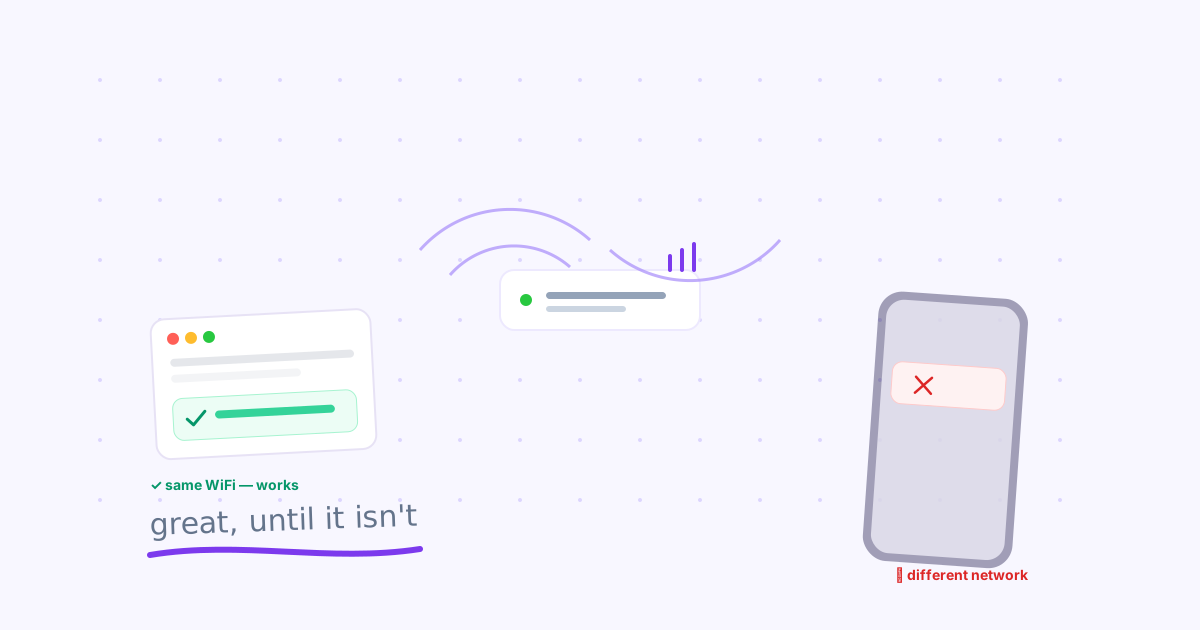
Every tool in this category works the same way underneath: your device broadcasts its presence on the local subnet (usually via mDNS, the same technology behind AirPlay and Chromecast discovery), other devices on that subnet see the broadcast, and a direct connection opens between them — no server in between.
That's what makes it fast and private. It's also exactly why it only works within one network: broadcasts don't leave the subnet. Your phone on mobile data, or a laptop on a different WiFi network entirely, will never see the announcement.
The tools, and how to actually use them
LocalSend — Free, open source, and the most broadly cross-platform option: Windows, Mac, Linux, iOS, and Android all get a real app. Install it on both devices, open it, and any device on the same WiFi appears in the list automatically. Tap it, select a file, send. No account, no setup beyond installing the app.
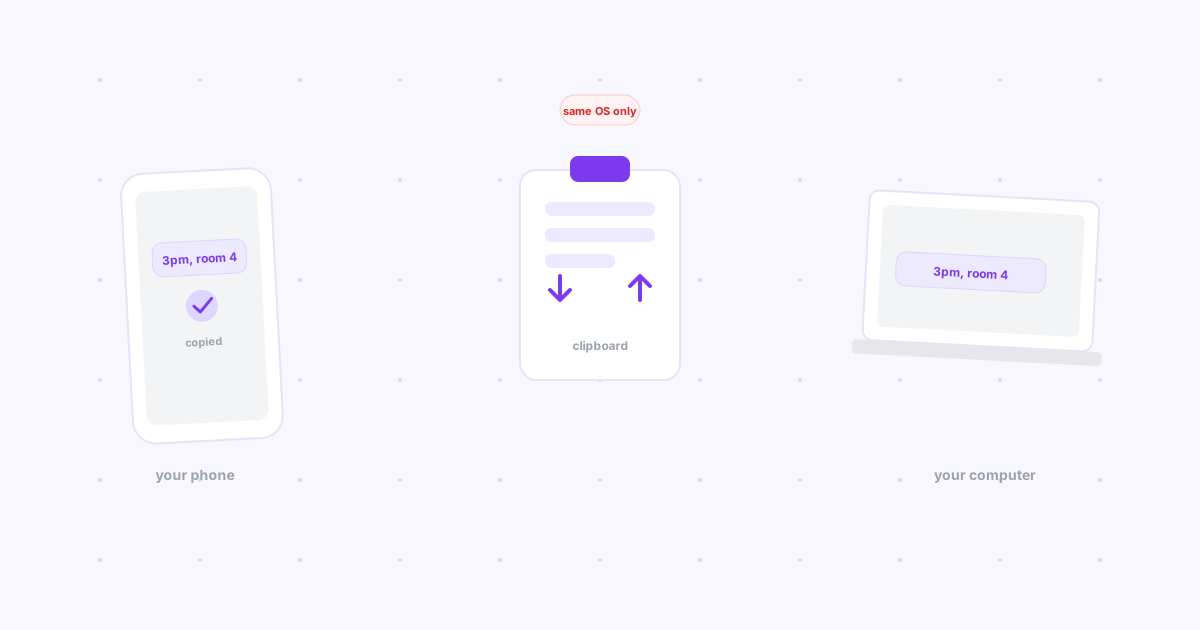
KDE Connect — The most mature option on Linux and Android, with deep integration (shared clipboard, remote input, notification mirroring, not just file transfer). An iOS app exists but is still limited — background notifications don't work due to Apple's platform restrictions, and it's distributed through TestFlight rather than a full App Store release. Best choice if you're already in the Linux/Android ecosystem.
Snapdrop — A browser-based option with zero install: open the site on both devices' browsers and they discover each other over the local network via WebRTC. Convenient for a one-off transfer to someone else's device, since there's nothing to install. Less reliable for repeat daily use — closing the browser tab ends the session.
All three of these — plus croc, Syncthing, OnionShare, and Nextcloud — get a deeper look in our honest review of 7 open source file sharing tools.

Photo by Kyle Loftus on Unsplash
Built-in OS sharing (Windows file sharing, Nearby Share, AirDrop) — Windows' native file sharing works well between Windows machines on a trusted home network, but requires network discovery to be enabled and can be fiddly across different Windows versions. Nearby Share and AirDrop are covered in detail in our comparison of every cross-platform file sharing method — both are same-ecosystem tools with the identical same-network requirement underneath.
When local network transfer is the wrong tool
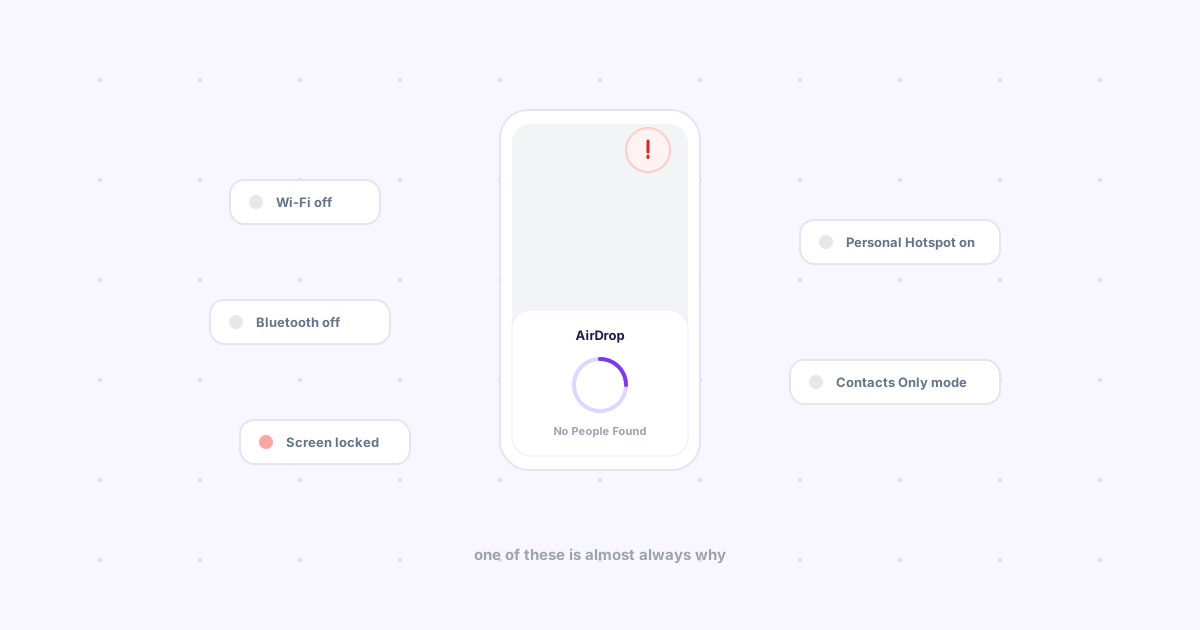
This is the part that catches people off guard, because the failure looks identical every time: you open the app, and the other device just isn't there.
Different WiFi networks — Home network and office network are different subnets. Your work laptop on the office WiFi and your phone on home WiFi will never discover each other, even if you're sending to yourself.
Public WiFi with client isolation — Most hotel, airport, and coffee shop networks deliberately enable client isolation, a security setting that stops devices on the same WiFi from seeing each other directly, even though every device can still reach the internet fine. This is intentional — it stops other guests on the network from probing your device — and it silently breaks every local-discovery tool without any error message explaining why.
One device on mobile data — If your phone drops to cellular data even briefly, it's no longer on the same subnet as your laptop, and discovery fails until it reconnects to the same WiFi.
Guest networks and VLANs — Many offices now put guest devices and staff devices on separate isolated networks by default, for the same security reasons as public WiFi.
What to use when the network won't cooperate
Once you've hit one of these walls, the fix isn't to debug the network — it's to stop depending on it. Knit moves links and files between your devices over the internet instead of the local network, so it doesn't care whether both devices are on the same WiFi, different WiFi, or one's on mobile data entirely. Sign in once, and it works the same way everywhere.
Every option, side by side
| Tool | Platforms | Same WiFi required? | Best for |
|---|---|---|---|
| LocalSend | Windows, Mac, Linux, iOS, Android | Yes | Cross-platform, no account |
| KDE Connect | Linux, Android (iOS limited) | Yes | Linux/Android power users |
| Snapdrop | Any browser | Yes | One-off, no install |
| Windows file sharing | Windows only | Yes | Home network file shares |
| Knit | Any browser + Chrome extension | No | Different networks, remote work, public WiFi |
The bottom line
Local network tools are genuinely the fastest option when both devices are on the same trusted WiFi — there's no reason to reach for anything else in that case. The moment a network boundary gets in the way, though, no amount of troubleshooting fixes it, because it's working exactly as designed. That's the specific gap Knit was built to close.