TL;DR: Emailing yourself, using WhatsApp/Telegram as a clipboard, and AirDrop all have real friction for getting a link from laptop to phone: buried threads, ecosystem lock-in, or same-network requirements. Knit is a free Chrome extension that drops a link to your phone in one click, over the internet, on any OS.
You're working on your laptop. You find something — an article, a product page, a design reference, a staging URL you need to test on mobile. You need it on your phone. Right now.
So you do what everyone does. You email it to yourself. Or drop it in a WhatsApp group. Or copy it into Notes. Or try AirDrop and watch it spin for 30 seconds before giving up.
There has to be a better way. There is — and this post walks through every option, including the trade-offs nobody mentions.

Photo by Andrew Neel on Unsplash
Why the obvious solutions all have problems
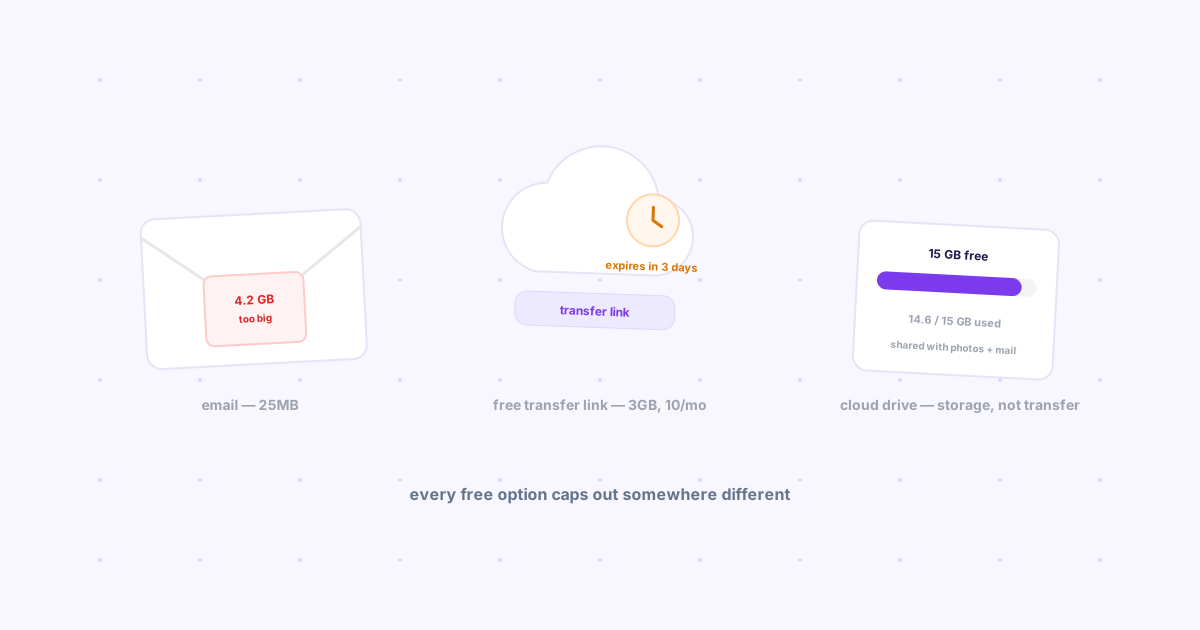
Email yourself — Works, but now your inbox has links to yourself mixed in with actual emails. You forget to check, or find it three days later. Worse: your "sent to self" emails train you to ignore your own inbox.
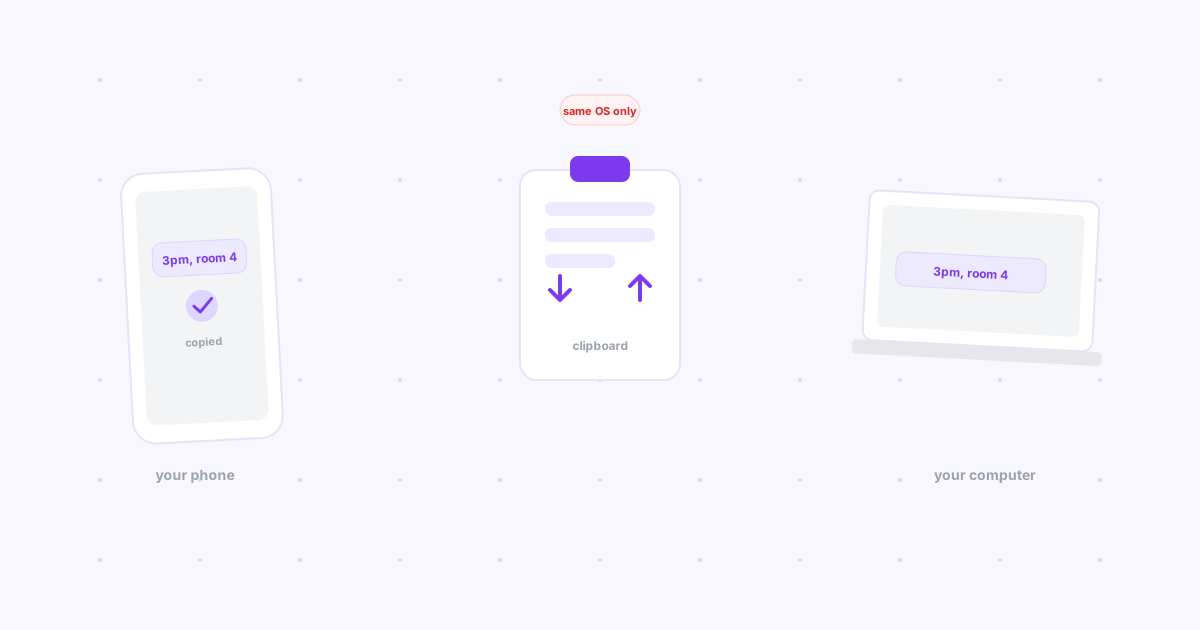
WhatsApp or Telegram saved messages — You're using a messaging app as a clipboard. Your link is buried between actual conversations within minutes. Telegram's "Saved Messages" is the best of this category, but it's still a chat log — no organization, no search that works, no expiry.
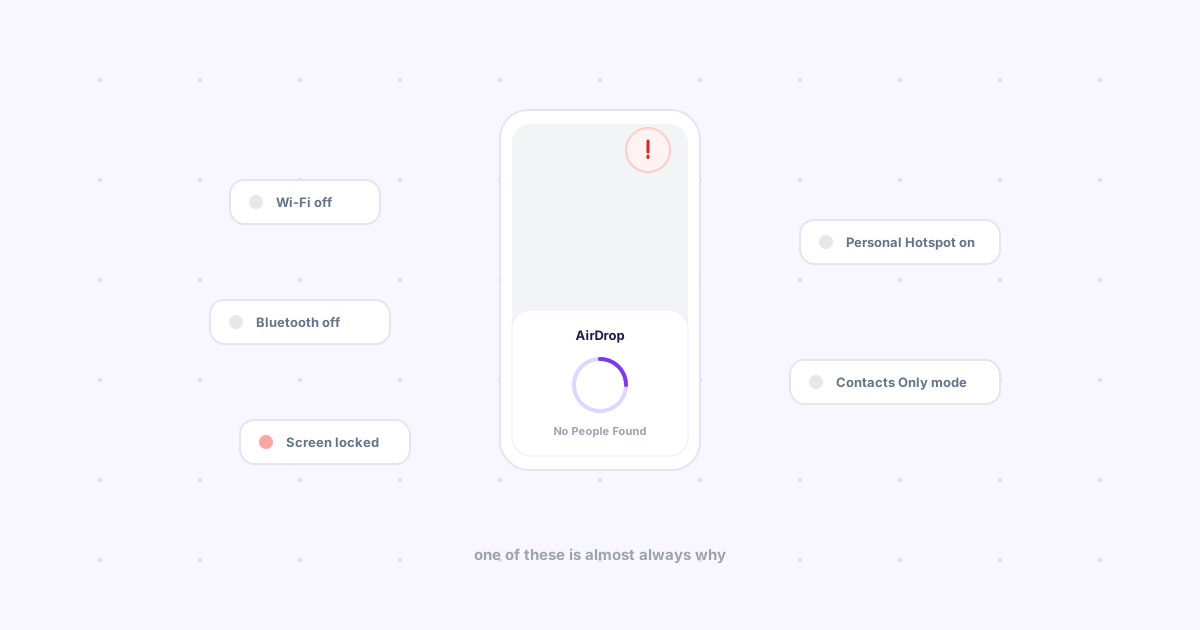
AirDrop — Apple devices only. Fails if Bluetooth is flaky. Both devices need to be unlocked and nearby. And if you're on Windows or Android for even one of your devices, it's simply not an option — see our breakdown of what actually replaces AirDrop on Windows and Android.
Google Keep or Notes — Too many steps. Open app, create note, paste, save, switch device, open app again. By the time you're done you've lost your train of thought. These apps are built for notes, not for the two-second handoff you actually need.
Local network transfer tools (KDE Connect, LocalSend, Snapdrop) — Genuinely good open-source options, but they require both devices on the same WiFi network. At home: fine. Between office desktop and home phone, or on hotel WiFi that isolates clients: dead end.
What you actually need
A one-click bridge between your browser and your phone. No app-switching. No copy-paste. No same-network requirement. Something that works the moment you think "I need this on my phone."
The requirements are simple:
- Works from the browser, where you already are
- Appears on your phone immediately
- Works on any OS — not just Apple
- Works over the internet, not just local WiFi
How Knit solves this
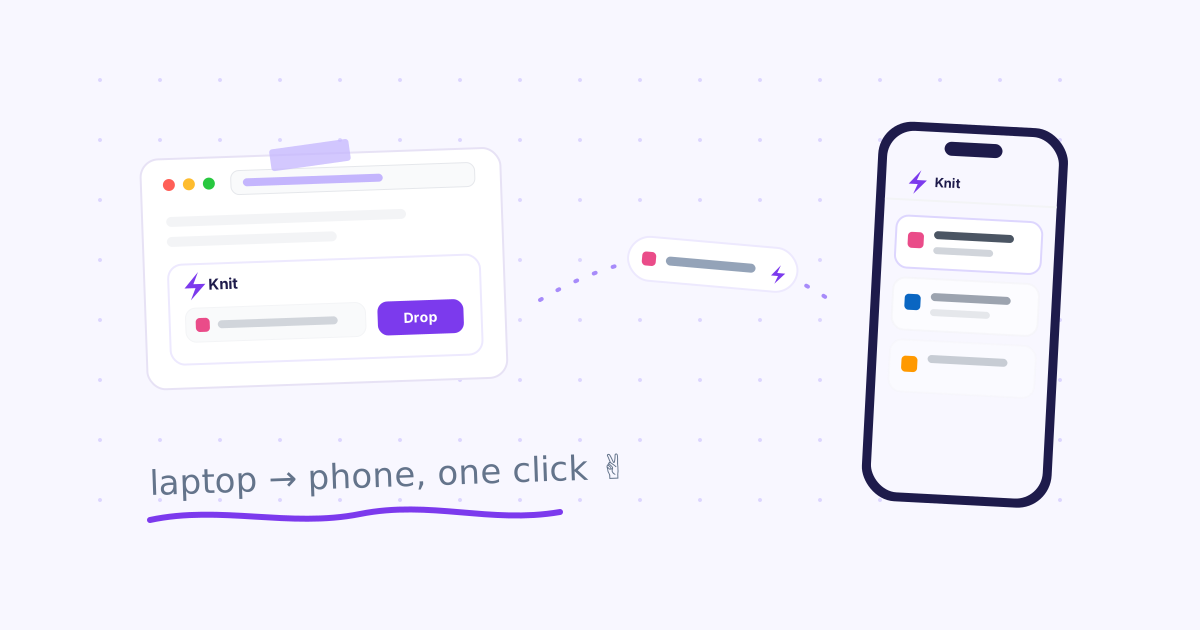
Knit is a free Chrome extension that drops any link to your other devices in one click.
Here's what actually happens:
- You're on any page in Chrome
- You click the Knit icon in your toolbar and hit Drop
- You pick up your phone and open Knit — the link is already there
No copy. No paste. No switching apps. No waiting. You click once and it's done before you even pick up your phone.

Photo by Giorgio Trovato on Unsplash
The same Google account works on web, mobile browser, and the Chrome extension — so everything stays in sync automatically, over the internet, on any network.
The extra things that make it useful every day
A library that saves your best links — Not everything is temporary. Tag links and search them later from any device. No more "what was that article I saved three weeks ago?"
Works on everything — Chrome on Windows sending to Safari on iPhone. Android to Mac. Any browser, any OS. No Apple ecosystem required, no same-WiFi requirement.
Expiry that keeps things clean — Links can expire automatically (1 hour to never). Your drop zone never becomes another graveyard of stale links.
History that recovers your mistakes — Cleared your tray and then realised you needed that link? Knit keeps deleted links recoverable for 7 days.
The bottom line
The problem of moving links between your own devices shouldn't require a workaround. It should be one click.
If you've ever emailed yourself a link, Knit was built for you. The Chrome extension takes 10 seconds to install and works the moment you sign in.
Curious how this stacks up against cloud storage, USB, AirDrop, and everything else? See our full breakdown of every cross-platform file sharing method compared.