TL;DR: Typing a local IP only works on shared WiFi, tunneling tools like ngrok solve exposure but not delivery, and AirDrop only covers Apple-to-Apple. The actual fastest path is: get a public staging URL, then send that link to your phone with a cross-platform tool — no retyping, no same-network requirement.
You've got a build running — localhost, a staging deploy, a PR preview — and you need to see it on an actual phone, not just a resized browser window. This happens on nearly every feature that touches layout, touch targets, or mobile Safari's particular set of bugs.
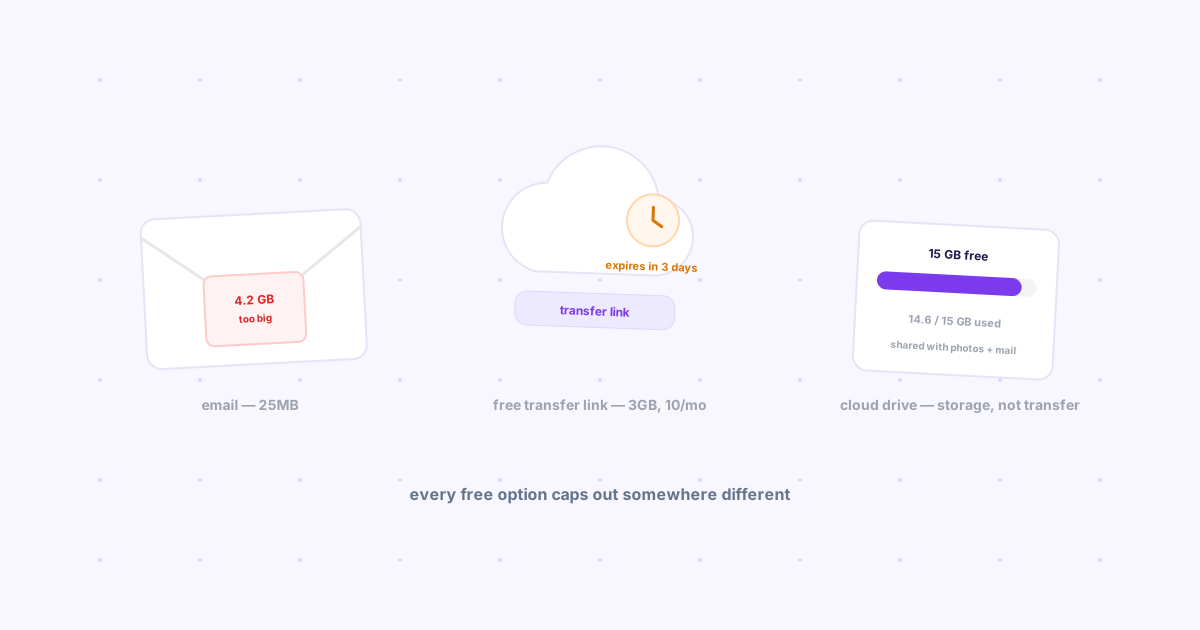
Getting the URL from your laptop screen into your phone's address bar sounds trivial. In practice it's one of those small dev-workflow gaps everyone solves slightly differently, and most of the obvious ways have a catch.
Typing the local IP address
If your dev server and your phone share the same WiFi, this genuinely works: find your machine's local IP, type http://192.168.x.x:3000 into your phone's browser, done.
The catch: it only works on that one network. Office WiFi with client isolation, a hotel network, or simply being on mobile data instead of WiFi all break it instantly — and typing an IP address and port by hand on a phone keyboard is its own small tax, every single time.
Tunneling tools (ngrok, localtunnel)
These expose your local dev server at a real public URL, which solves the network problem — the resulting link works from any device, anywhere.
The catch: a tunnel gets you a URL, not delivery. You still have to get that generated https://random-string.ngrok.app link onto your phone somehow — which is exactly the same laptop-to-phone problem, just one step later. For the general version of that problem, see how to send links from your laptop to your phone.
Deploy preview links (Vercel, Netlify)
If you're already deploying PR previews, you skip the tunnel entirely — there's a real, stable public URL waiting on every push.
The catch: the URL still has to travel from your laptop to your phone. Most people default to emailing it to themselves or pasting it into a Slack DM, which works but comes with its own friction — we measured that cost in why the "send to self" habit is costing you focus.
AirDrop, if you're all-Apple
Mac to iPhone, AirDrop is instant and needs nothing else installed.
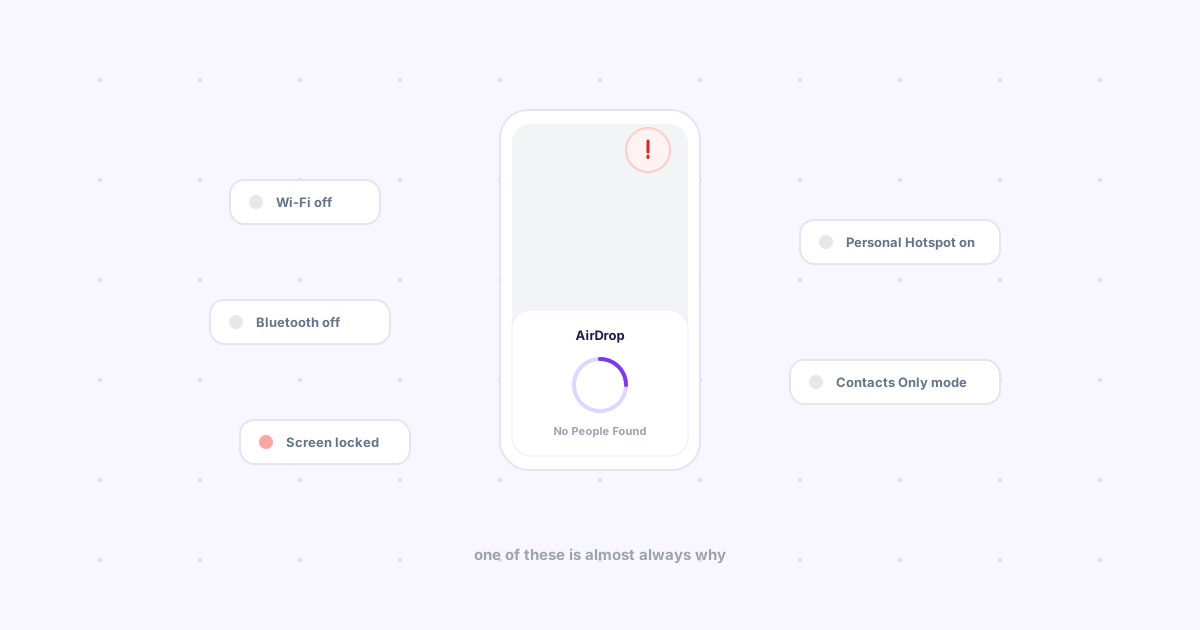
The catch: it's Apple-only. The moment your test device is an Android phone, or your dev machine is Windows or Linux, AirDrop isn't an option at all — see AirDrop alternatives that actually work on Windows and Android.
The actual fast path
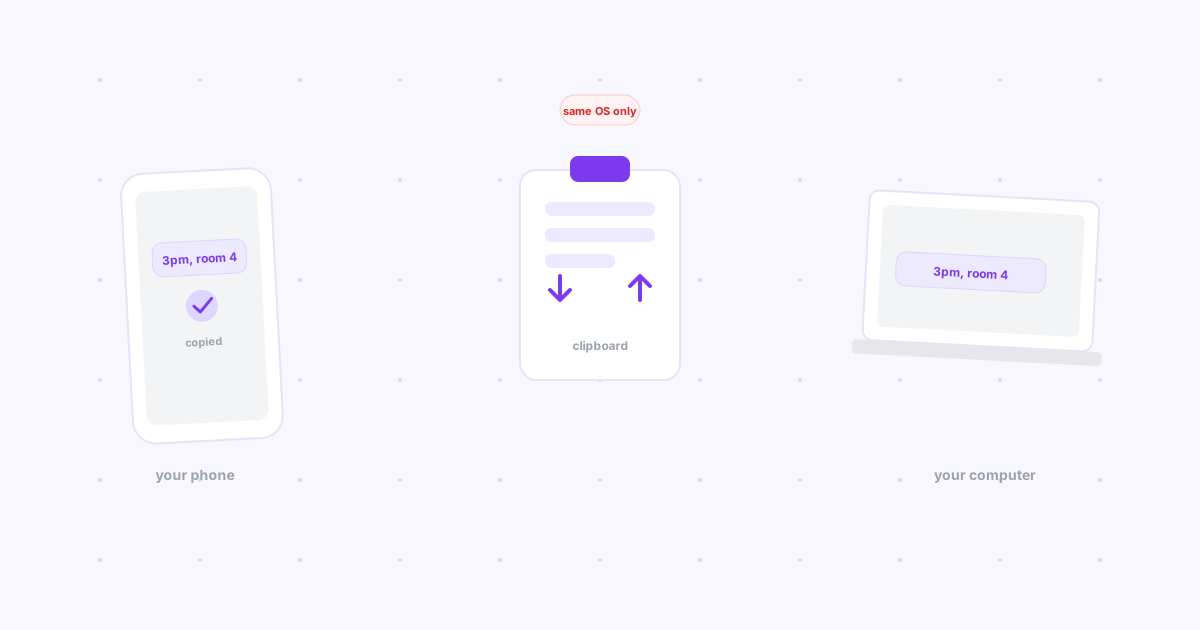
Combine the two things that each solve half the problem: a public URL (local IP if you're on shared WiFi, otherwise a tunnel or preview deploy), plus a one-click way to get that link onto your phone that doesn't care what network either device is on.
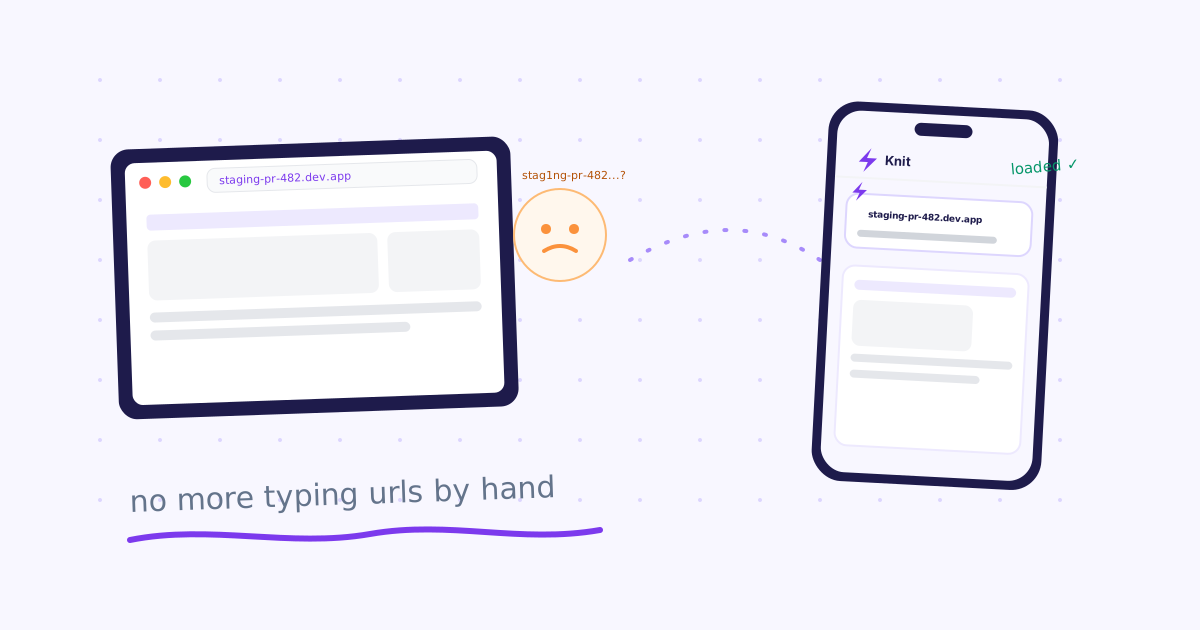
That second half is what Knit does. Copy the staging URL, click the Knit extension icon, hit Drop — pick up your phone and it's already there, no retyping, no shared WiFi requirement, no email round-trip.
- Copy the staging or tunnel URL from your browser
- Click the Knit icon, hit Drop
- Open Knit on your phone — the link is already loaded and ready to tap
Every method, side by side
| Method | Works off shared WiFi? | Extra step to reach your phone |
|---|---|---|
| Local IP address | No | Type IP + port manually |
| ngrok / localtunnel | Yes | Still need to send the generated URL |
| Deploy preview link | Yes | Still need to send the link (usually email/Slack) |
| AirDrop | Yes, but Apple-only | None, if both devices are Apple |
| Knit | Yes | None — one click |
The bottom line
A staging URL isn't hard to get onto your phone once — it's the fifth time today that gets old. Pair whatever gets you a public URL (local IP, tunnel, or preview deploy) with a one-click way to send it, and mobile testing stops being its own small chore.