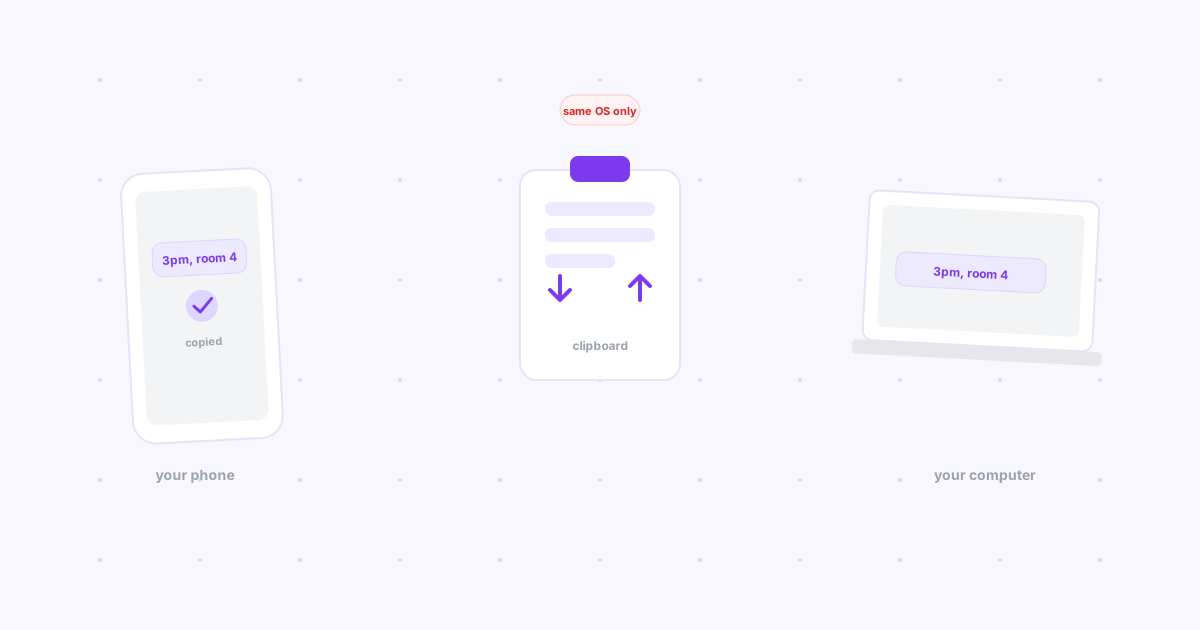
TL;DR: Apple's Universal Clipboard syncs automatically, but only between a Mac and an iPhone or iPad on the same Apple Account. Windows added a clipboard bridge to Android through Phone Link, but as of its 2026 rollout it only goes one direction. KDE Connect covers Linux and Android, two-way. Nothing built-in covers Mac+Android, Windows+iPhone, or any pairing that needs to go both ways across ecosystems — that gap is where a manual cross-device drop still wins.
You copy a confirmation code, an address, a line of text on your phone, and you need it on your computer thirty seconds from now. If both devices happen to be made by the same company, this might already be automatic. If they're not, there's a good chance nothing is watching your clipboard at all.
Apple Universal Clipboard — automatic, but Apple-only
Copy something on an iPhone or iPad and paste on a nearby Mac (or the reverse) and it just works, with no app to open. Per Apple's own support documentation, it requires any iPhone 5 or later / iPad 4th-generation or later on iOS or iPadOS 10+, a Mac from 2012 or later on macOS Sierra or later, both devices signed into the same Apple Account, and Bluetooth, Wi-Fi, and Handoff all turned on within about 30 feet of each other.
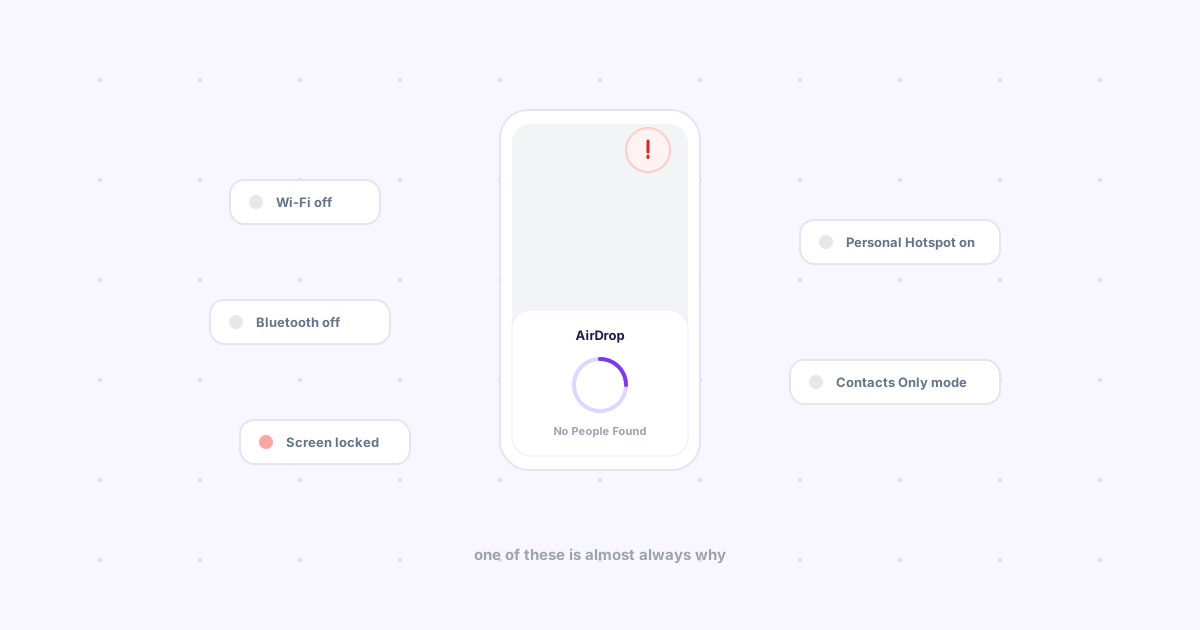
The catch is the whole catch: it is an Apple Account feature between two Apple devices. A Windows laptop or an Android phone in the mix, and Universal Clipboard doesn't exist for that pairing — there's no client, no workaround, no settings toggle. It's the same walled-garden shape as AirDrop, covered in depth here.
Windows + Android via Phone Link — half a bridge
Microsoft has been rolling a clipboard bridge into its Phone Link app on Windows 11, first spotted in Windows Insider builds around September 2025 and expanding through 2026, per 9to5Google's and Windows Latest's reporting. Turn on "Access PC's clipboard" in the phone's Devices settings, link the phone to the same Microsoft account used for Phone Link, and enable Clipboard History on the PC — text copied on the Windows machine then shows up ready to paste on the Android keyboard (Gboard and Samsung Keyboard both confirmed working).
The catch: at rollout, it only goes one way. Text copied on Windows reaches the phone; text copied on the phone does not come back to Windows. If your actual need is "copy on my phone, paste on my laptop," this feature as shipped doesn't cover it yet.
KDE Connect — two-way, but Linux + Android only
KDE Connect syncs the clipboard in both directions between a Linux desktop and an Android phone, alongside notification mirroring and remote media control. It's the most complete clipboard bridge of the three — narrowed to exactly one pairing.
Windows' Clipboard History isn't the same feature
Win+V opens a history of things you've copied on that one PC, which is genuinely useful but solves a different problem: it's a single-device memory, not a bridge to another device. A lot of people search for "clipboard sync" while actually wanting clipboard history, or vice versa — worth confirming which one you need before hunting for a setting that isn't there.
Every pairing, compared
| Pairing | Built-in option | Direction | Setup |
|---|---|---|---|
| Mac ↔ iPhone/iPad | Universal Clipboard | Both ways | Same Apple Account, automatic once on |
| Windows ↔ Android | Phone Link | Windows → Android only | Link phone, two toggles |
| Linux ↔ Android | KDE Connect | Both ways | Desktop applet + companion app |
| Mac ↔ Android | None | — | — |
| Windows ↔ iPhone | None | — | — |
| Linux ↔ iPhone, Windows | None | — | — |
What to do if your pairing isn't covered
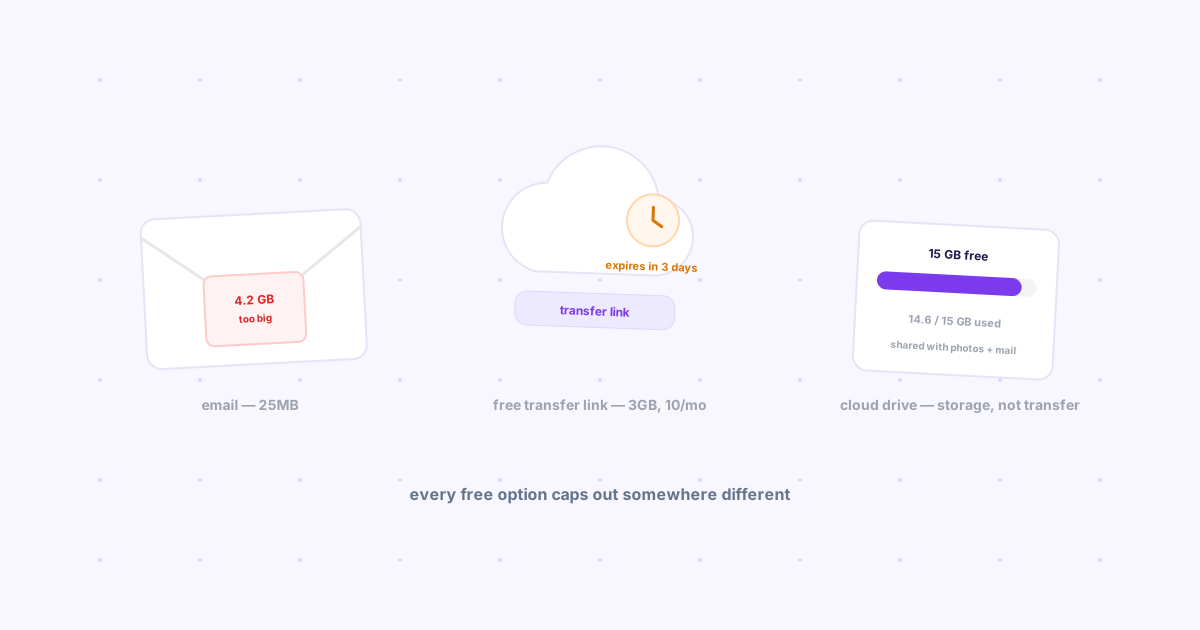
If you're on one of the pairings with no native bridge — or you need the direction Phone Link doesn't do yet — the fallback most people reach for is emailing themselves the text or pasting it into a chat app's "notes to self." Both work, both add a detour through an inbox or a message thread that has nothing to do with what you're actually trying to move.
Knit covers this gap manually rather than automatically: paste text, a link, or a file into the tray on one device, and it's waiting to grab on the other — any OS combination, no shared Wi-Fi, no matching account ecosystem required, just the same Google sign-in on both ends. It's not watching your clipboard in the background the way Universal Clipboard is; it's a few seconds slower because you open the app and hit paste. What it trades for that is working identically on every pairing in the table above, including the four rows with nothing built in at all.
The bottom line
If you're fully inside one ecosystem — all Apple, or a Linux desktop paired with one Android phone — the automatic option is genuinely worth turning on and forgetting about. Everything else, including Windows+Android until the reverse direction ships, still needs a manual step. The honest fix isn't waiting for Microsoft or Apple to bridge every combination; it's having one tool that already treats "any two devices" as the default case.