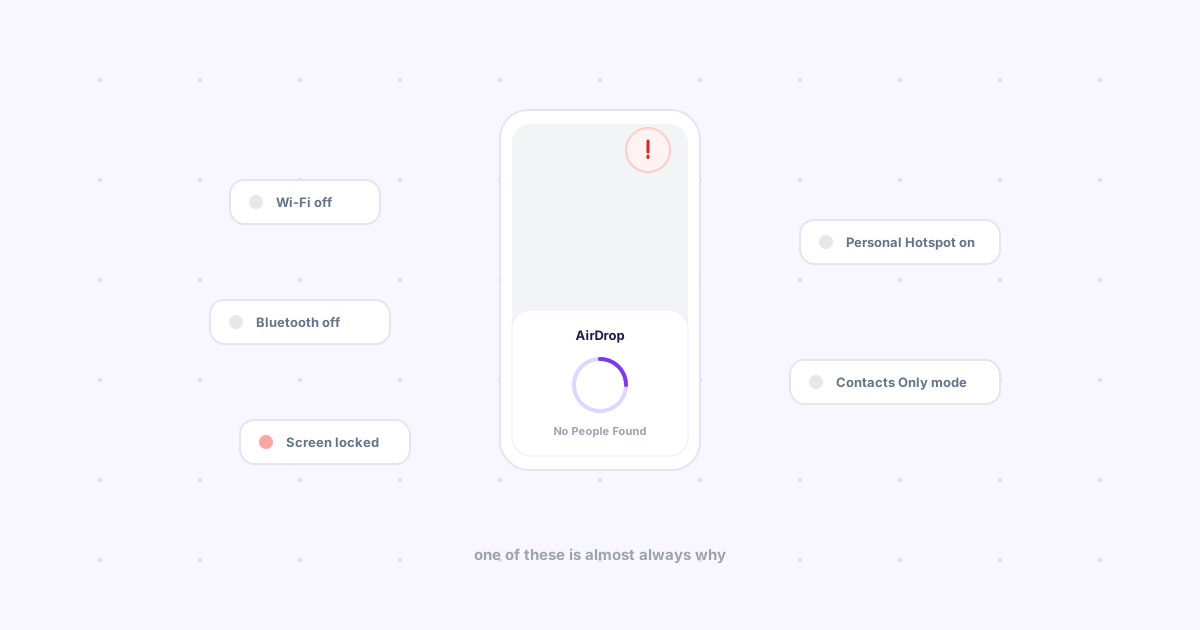
TL;DR: Five things cause almost every "AirDrop not working" case: Wi-Fi or Bluetooth off, a locked or sleeping screen, Personal Hotspot silently taking over the Wi-Fi radio, "Contacts Only" visibility blocking a sender you don’t have saved, or the two devices being too far apart. Work through them in that order before assuming anything is actually broken — and if the real problem is that the other device isn’t Apple, no setting will ever fix that one.
You've done this a hundred times. Today the share sheet just spins on "No People Found," or the other device never shows up at all. Nothing about AirDrop looks broken — it just isn't finding anything, and it's not obvious why.
Per Apple's own setup guide, AirDrop needs both devices to have Wi-Fi and Bluetooth on, be awake and unlocked, and be within about 30 feet of each other — Bluetooth handles discovery, the file itself moves over a direct peer-to-peer Wi-Fi link, no internet or shared network required. Almost every failure traces back to one of those requirements silently not being met.
1. Wi-Fi and Bluetooth — check both, on both devices
The most common cause, and the fastest to rule out. Open Control Center on each device and confirm both are on — not just Wi-Fi connected to a network, since AirDrop's peer-to-peer link works even without one, but the radio itself has to be enabled. A phone left in Airplane Mode with Wi-Fi manually re-enabled can still have Bluetooth off, which looks like a connected phone that simply can't be found.
2. One device is asleep or locked
AirDrop can't discover a device that's asleep, and a locked screen can block receiving even when the screen is technically on. If you're sending to a device sitting untouched on a desk, wake it and unlock it first — this alone accounts for a surprising share of "it was working five minutes ago" reports.
3. Personal Hotspot is quietly on
This is the one people miss. If Personal Hotspot is enabled on either iPhone, it can take priority over the Wi-Fi radio AirDrop needs for the actual transfer — the toggle doesn't announce that it's interfering, it just makes AirDrop fail as if nothing were wrong. Check Settings → Personal Hotspot and turn it off if you're not actively using it.
4. Visibility is set to "Contacts Only"
Go to Settings → General → AirDrop and check whether it's set to Contacts Only, Everyone for 10 Minutes, or Receiving Off. Contacts Only only works if the sender's Apple ID is already saved in your Contacts — a coworker or a new phone number you haven't saved yet will never show up, even standing right next to you. Switching to "Everyone for 10 Minutes" for the one transfer sidesteps this without leaving it open indefinitely.
Between your own devices specifically: sign in with the same Apple Account on both, which Apple's guide notes lets items auto-accept without this visibility check getting in the way at all.
5. They're just too far apart
AirDrop's range is about 30 feet, and it degrades with walls and interference well before that. If you're on different floors or across a large room, close the distance and try again before troubleshooting anything else.
Every cause, at a glance
| Symptom | Likely cause | Fix |
|---|---|---|
| Spinning "No People Found" | Wi-Fi or Bluetooth off | Enable both in Control Center |
| Device doesn't show up at all | Asleep or locked screen | Wake and unlock the receiving device |
| Worked yesterday, not today | Personal Hotspot on | Settings → Personal Hotspot → off |
| Shows up for some people, not others | Contacts Only visibility | Switch to Everyone for 10 Minutes, or save the contact |
| Nothing happens, both devices seem fine | Too far apart | Move within ~30 feet |
When it isn't a settings problem at all
If you've checked all five and it still won't connect, or the device on the other end is a Windows laptop or an Android phone, the issue isn't a setting — AirDrop is Apple-only software with no client on the other platforms, so there's nothing to toggle. See what actually replaces AirDrop on Windows and Android for that case specifically.
If you're tired of it happening at all
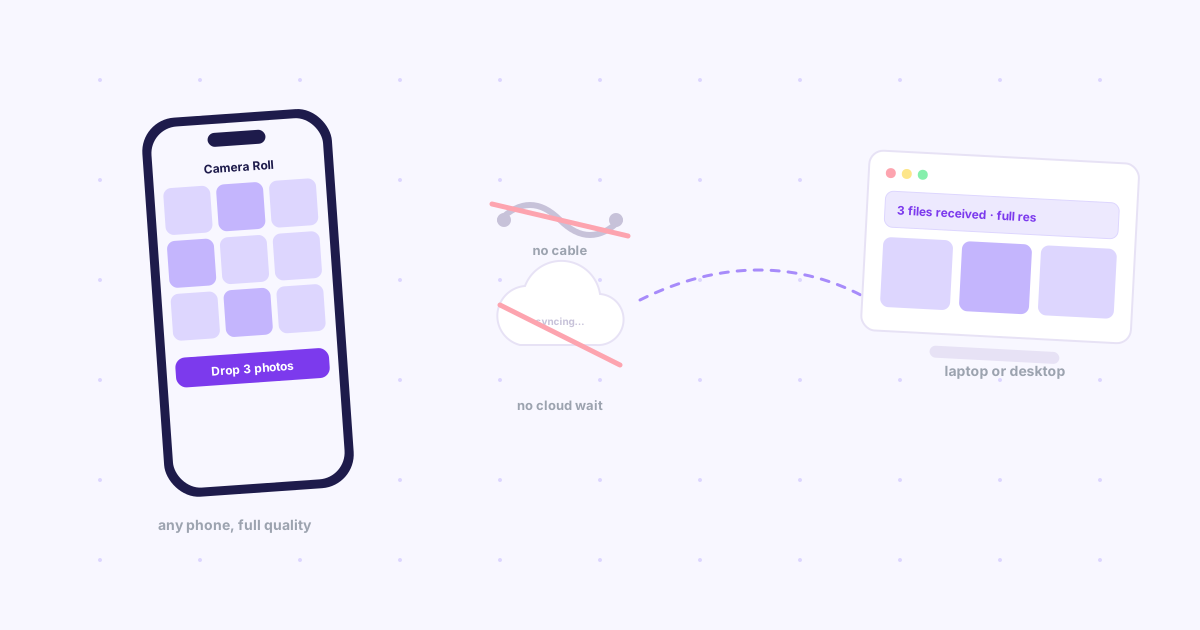
Even with everything configured correctly, AirDrop depends on Bluetooth discovery and a live peer-to-peer Wi-Fi link between two devices in the same room — which is exactly the part that breaks silently. Knit skips that layer entirely: it sends over the internet instead of a local radio handshake, so there's no Bluetooth to leave off, no Personal Hotspot to conflict with, and no 30-foot range to stay inside. The tradeoff is it isn't Apple-exclusive magic — you open the app and hit Drop — but it also doesn't have this specific failure mode.
The bottom line
AirDrop failing almost never means AirDrop is broken — it means one of five specific requirements isn't met, and four of the five take under a minute to check. Work through Wi-Fi/Bluetooth, screen lock, Personal Hotspot, and visibility in that order before assuming you need a different tool. The one case nothing on this list fixes is the other device not being Apple's at all — that's a different problem with a different answer.