TL;DR: USB cables still work but come with driver and app friction, AirDrop is Apple-only, and cloud backup (Google Photos, iCloud) means an upload-then-download round trip. Timed against a Pixel and an iPhone: a direct web-based transfer (Knit) got full-resolution photos onto a laptop in under ten seconds, on any OS combination.
You took a few photos on your phone and you need them on your computer — for an email, a document, an edit, a print order. It sounds like the simplest file operation in the world, and then you remember it never actually is.
I tested the real options against a Pixel and an iPhone, sending three photos (largest 8MB) to the same Windows laptop, timing from "photos selected on phone" to "photos open on the computer."
USB cable — reliable, but there's always a snag
Still the most universal option on paper: plug in, the phone shows up as a drive, drag the files over.
Timed: ~30–60 seconds, once it actually connected. The real cost is everything before that: finding the right cable, an Android phone that needs its USB mode manually switched to "File Transfer," or an iPhone that wants Apple's Photos import flow instead of a plain drag-and-drop, since iTunes-style file sharing doesn't expose the camera roll as a folder.
Use it when: you're moving dozens of photos at once and don't mind the setup — bulk export is genuinely where cable wins.
Cloud backup (Google Photos, iCloud) — fine for archiving, slow for "right now"
If backup is already running, the photos are technically already off the phone.
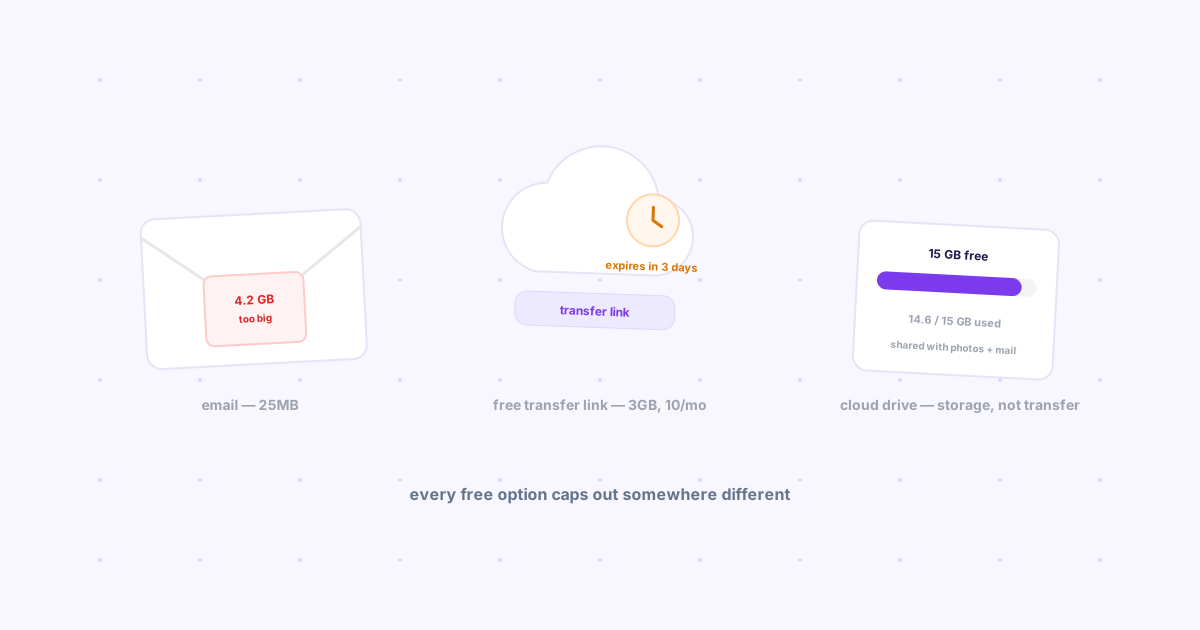
Timed: ~2–4 minutes for the upload to finish, then a separate step of opening the same service on the computer and downloading — two actions pretending to be one. Free tiers also often compress originals to save space, which is the quiet reason a screenshot looks softer after a backup-and-download round trip.
Use it when: the photos need to be archived permanently anyway, not just handed to your computer once — the same storage-vs-handoff mismatch shows up in local file server vs. cloud sharing for solo use.
AirDrop — instant, but Apple only
If it's an iPhone and a Mac, AirDrop is genuinely the fastest thing on this list — no timing needed, it's near-instant.
The catch: it stops existing the moment either device isn't Apple's. A Pixel or Samsung phone, or a Windows computer, simply can't AirDrop — there's no client for either. For that half of the world, see what actually replaces AirDrop on Windows and Android.
Bluetooth — works everywhere, slow enough to notice
The universal fallback: pair the devices, send the file over Bluetooth.
Timed: ~40–70 seconds for three photos, after a pairing handshake that took its own 20–30 seconds. Bluetooth's bandwidth ceiling makes this the slowest cable-free option tested, and it gets worse fast as file sizes grow.
Use it when: nothing else is available and the file is small — genuinely a last resort now.
A direct web transfer (Knit) — full quality, under ten seconds
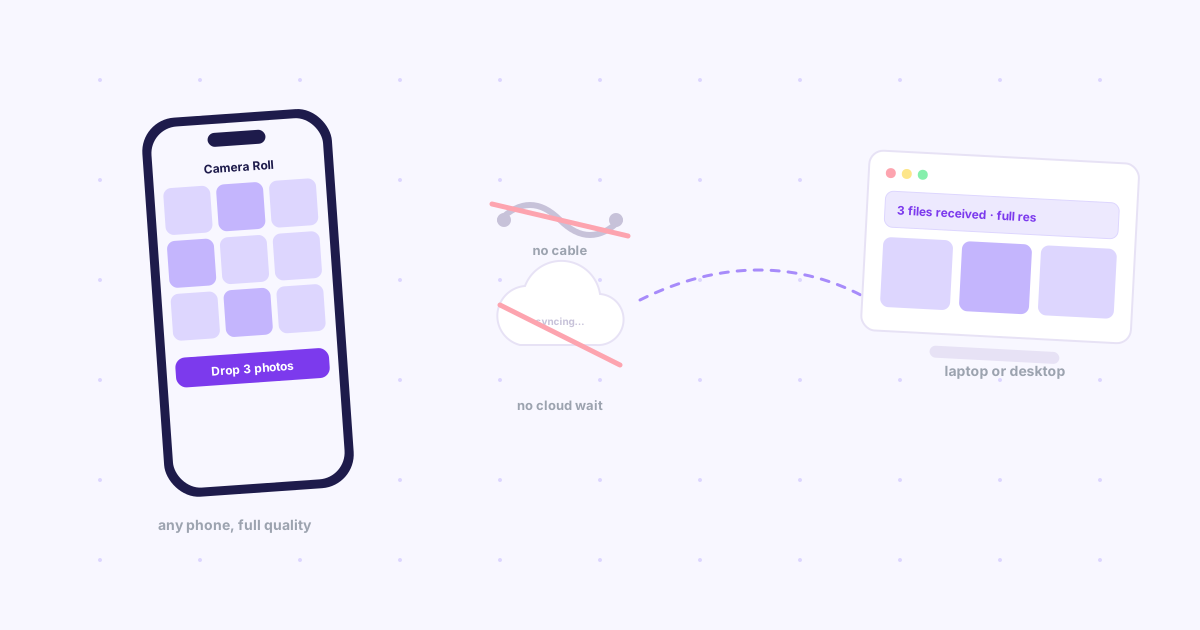
Knit skips both the cable and the upload-then-download cloud round trip: open the mobile site or app, select the photos, hit Drop — they're waiting on the computer as full-resolution files, not a re-compressed copy.
Timed: ~8 seconds for the three test photos, identically over WiFi or mobile data, since it goes over the internet rather than a local cable or Bluetooth radio. Same Google sign-in on phone and computer is the only setup, and files stay under 25MB free.
Every method, timed
| Method | Time (3 photos) | Full quality? | Cross-platform? |
|---|---|---|---|
| USB cable | 30–60s (+ setup) | Yes | Yes |
| Cloud backup | 2–4 min | Often compressed (free tier) | Yes |
| AirDrop | Near-instant | Yes | No — Apple only |
| Bluetooth | 40–70s | Yes | Yes |
| Knit | ~8s | Yes | Yes |
The bottom line
Bulk-exporting a whole camera roll still favors a cable. Everything smaller — a handful of photos you need on your computer in the next minute — is where a direct transfer wins, and it's the one route on this list that's both cable-free and full quality regardless of which phone or which computer you're holding.