TL;DR: Typing a long staging or preview URL into your phone by hand is slow and error-prone, and self-emailing it adds an inbox round trip. Drop the link from your laptop with Knit and it is already on your phone by the time you pick it up — no typing, no tunnel setup, no account.
You just pushed a fix. The staging URL is sitting in your terminal or your browser bar — something like https://staging-pr-482.dev.app — and now you need to check it actually works on an iPhone, not just in Chrome DevTools' device toolbar.
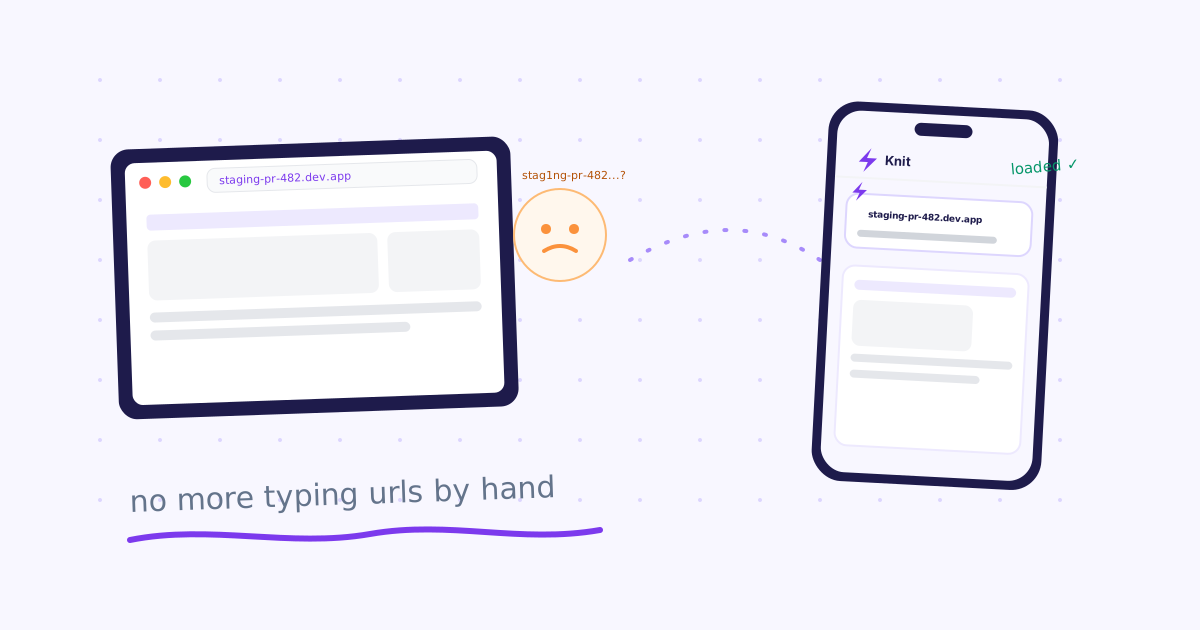
So you do what most people do: squint at the URL, type it into your phone's keyboard one character at a time, get an autocorrect or autocapitalize mistake on the third try, and finally load the page a minute later than it should have taken.
Why device toolbar testing isn't enough
Chrome's responsive design mode is a good first pass, but it is still Chrome's engine rendering a simulated viewport — not Safari on an actual iPhone, not a real Android keyboard pushing your layout around, not a real notch or safe-area inset. Anything touch-specific, anything Safari-specific, anything about how your CSS behaves under real mobile Chrome or Samsung Internet only shows up on the actual device.
That means at some point in every PR, someone has to get the real staging link onto a real phone. The question is just how much friction that takes.
The usual ways people do this — and where each one costs time
Typing it by hand — Fine for a short domain, painful for anything with a random preview slug like pr-482-a8f3k2.vercel.app. Autocorrect and autocapitalize both actively fight you, and one wrong character means the page just doesn't load.
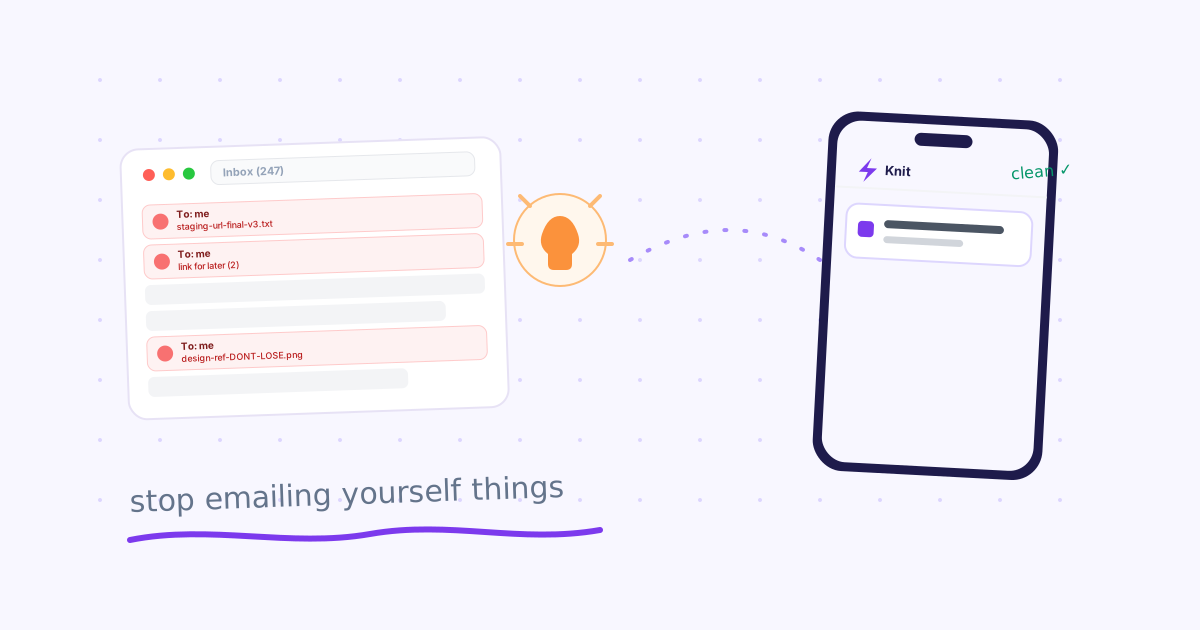
Emailing yourself the link — Works, but it's a full round trip through your inbox: compose, send, switch devices, open Mail, find the message next to everything else waiting there. See our breakdown of why the self-email habit costs more than it looks like if that sounds familiar.
A QR code generator — Better than typing, but still three steps: paste the URL into a QR site, wait for it to render, then open your phone's camera and scan it. Fast once it's set up, slow to set up every single time.
Slack or Discord "notes to self" — Faster than email, but the link sits in a channel history next to real messages, with no expiry — it's a workaround, not a tool built for this.
The faster way: drop the tab, pick up the phone
Knit is a free Chrome extension built for exactly this handoff. Click the icon on the staging tab, hit Drop, and the URL is already sitting in your tray on your phone by the time you pick it up — no retyping, no QR scan, no inbox.
The actual flow:
- Open the staging or preview URL in Chrome on your laptop
- Click the Knit icon (or hit Alt+L) — the current tab's link drops into your tray
- Open Knit on your phone — the link is already there, tap to open it in Safari or Chrome mobile
What this doesn't replace
Knit moves a URL from one device to another — it doesn't expose a local dev server to the internet. If your staging environment is genuinely localhost:3000 and not yet reachable outside your machine, you still need a tunnel (ngrok, Cloudflare Tunnel) to get a real internet-facing URL first. Once you have that URL — tunnel link, staging domain, or PR preview — Knit is what gets it onto your phone without typing it in.
The bottom line
Every real mobile QA pass needs the actual URL on the actual device at some point — there's no way around that. What's avoidable is the minute or two of typing, autocorrect-fighting, or inbox-checking it usually takes to get there. Install Knit and the next staging link is one click away from your phone, every time.